Introduction
Let's rewind eight years to the early hours of October 1, 2014, when another era-defining operating system appeared on the scene — Windows 10. At that moment, Microsoft officially released the first Windows 10 preview, completely abandoning the design language that had been in place since Windows Vista in 2005, as well as the colorful aesthetic that had been around since Windows 95 in 1995, in favor of the brand-new Fluent Design. This new design language heralded the arrival of a new era — the flat era.
After the first stable version of Windows 10 was released on July 29, 2015, Microsoft announced that Windows 10 would be its last Windows operating system. But six years later, in June 2021, Microsoft announced at the Build developer conference that it would unveil the "Next generation of Windows" on June 24, 2021.
And on that day, we saw a brand-new Windows — Windows 11! So why would Microsoft go back on its word and release a new Windows? Besides the fact that Windows is incredibly popular, there's an even bigger reason — a new era had arrived once again.
Installing Windows 11
Among the series of upgrade requirements for Windows 11, there's one that stands out — TPM 2.0
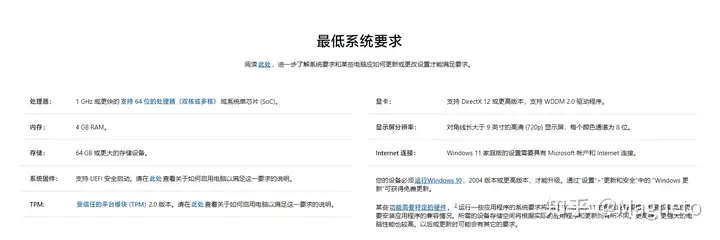
Aside from the TPM 2.0 requirement, the rest are easily met by computers from a decade ago. But TPM 2.0 is the one that blocks older machines from automatically and smoothly upgrading to Windows 11. That said, it's not a dead end — you can manually install Windows 11 via a PE system, though at the cost of your data.
My Experience with Windows 11
Speed
The first thing I noticed after using Windows 11 was how fast it is!
After swapping in a brand-new SSD and installing Windows 11, from pressing the power button, to the UEFI boot, to the Windows 11 logo, to the desktop appearing — the whole process took less than 15 seconds!
On the same computer, launching Visual Studio Code took 5–10 seconds on Windows 10, but only about 1 second on Windows 11.
Input Method
Microsoft also improved the input method on Windows 11. It has a more appealing design than the one on Windows 10, along with better performance.

While it still can't match the algorithms of mainstream input methods, it's now a solid runner-up. More importantly, it's built right in — no extra downloads needed.
Microsoft Edge
Beyond the input method, the new Microsoft Edge built into Windows 11 is arguably one of the most popular browsers out there. On Windows 11, it offers a different experience: rounded menus, semi-transparent acrylic materials, Fluent Design, the Chromium engine, cross-device bookmark syncing, and a host of other features. All of this makes Microsoft Edge on PC every bit as capable as Chrome — if not more.
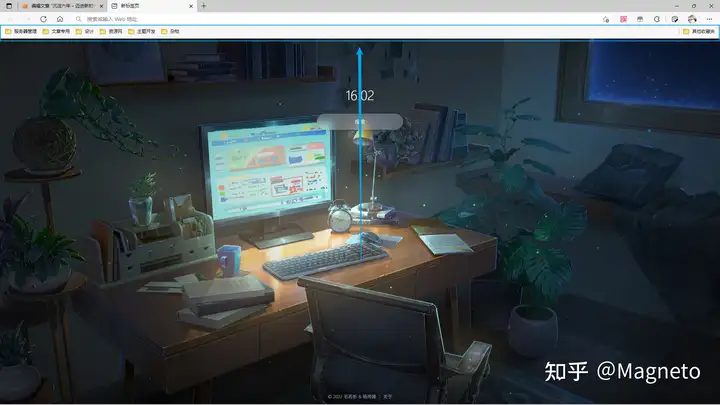
On top of that, it's also compatible with Internet Explorer's engine, so certain legacy websites can still be accessed and used normally.
Fluent Design, Extended
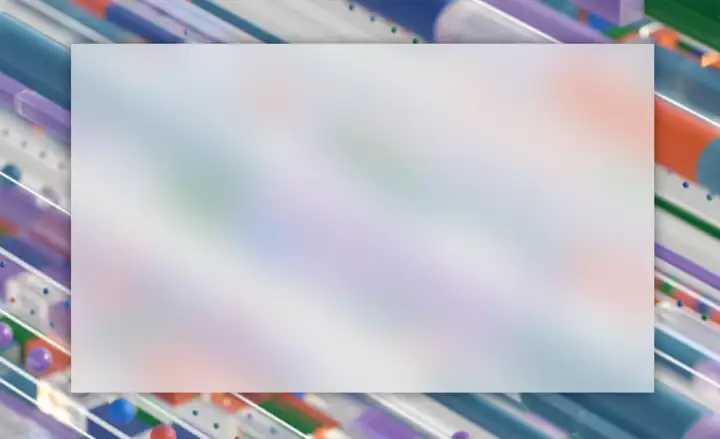
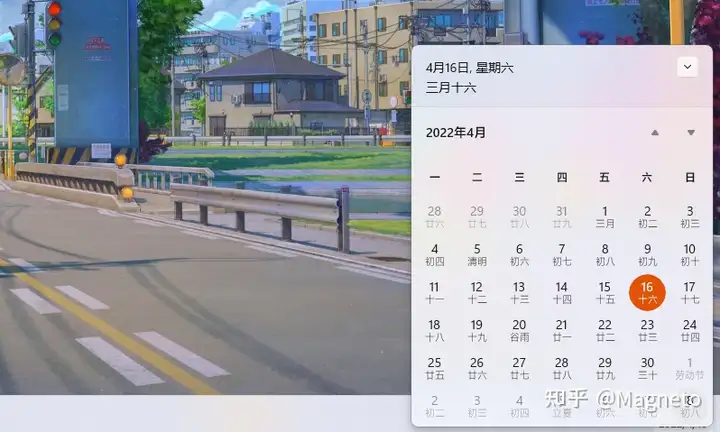
When Fluent Design was introduced in 2017, Windows 10 was the first to adopt it. In Windows 11, it has evolved further. The transparency of the acrylic material has been tuned down — reducing the visual effect not only eases the computational load but also lets us focus on the content itself rather than a flashier background.
Full Rounded Corners, Streamlined Right-Click Menu
Beyond the changes to Fluent Design, the biggest overhaul in Windows 11 is the fully rounded corners and the streamlined right-click menu. The former makes Windows 11 feel less rigid and gives it a softer, more organic touch, while the latter addresses a problem that had been building up for years.
After streamlining the right-click menu, Microsoft kept compatibility with older features by adding a Show more options entry that reveals the full menu — arguably the best solution for the Windows 11 right-click menu.
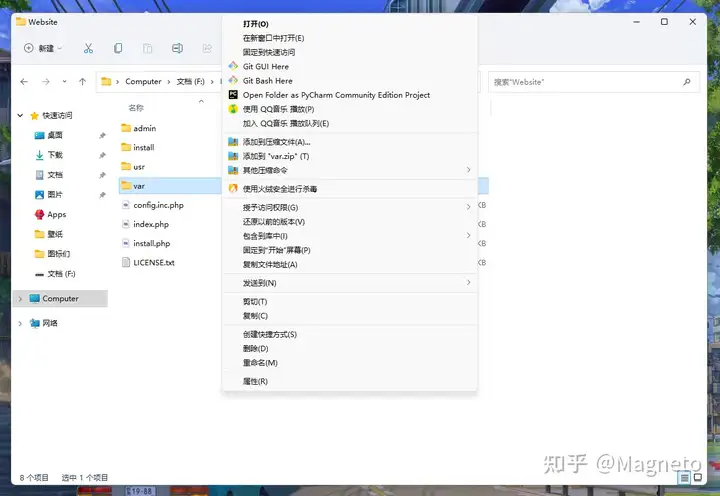
The full Windows 11 right-click menu
Clipboard & Emoji Panel
These two features were already added back in Windows 10's 18H update, but they hadn't changed much since. Since this is Windows 11, it was time to give them a makeover. The panel got the same rounded-corner treatment to match the new design, but the biggest change is that the clipboard, emoji panel, math symbols panel, and GIF search panel are now all combined into one. It's like a little tool built right into Windows, and it dramatically boosts productivity!
To open the clipboard, pressWindows +V, and for the emoji panel, it'sWindows +;. There are more panel shortcuts, but you'd have to memorize them — and if you can't remember them, they're not so handy. That was the case with Windows 10, though. In Windows 11, you only need to remember one shortcut to bring up the quick panel, and the buttons at the top will guide you wherever you need to go.
Taskbar & Start Menu
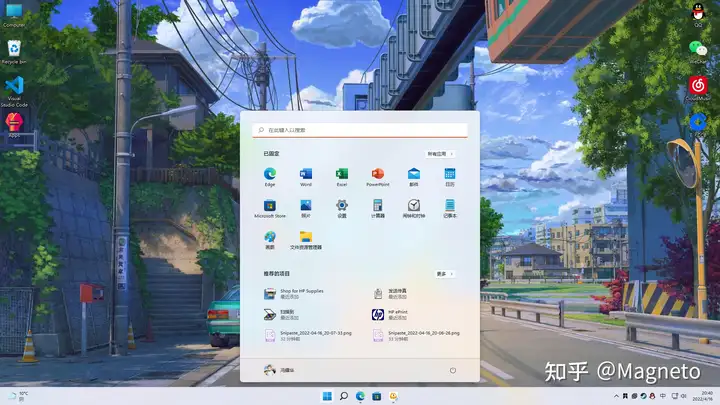
The most striking impressions of Windows 11 are the centered taskbar, the redesigned Windows logo, and the revamped Start menu. While the centered taskbar has drawn plenty of criticism, it's one of Windows 11's most distinctive features. And if someone really doesn't like it, they can always move it back to the left — Windows 11 gives you that option.
The redesigned Windows logo marks a fresh start for Windows. Its colorful, flat design represents a new era.
Despite the taskbar's mixed reception, the Start menu in Windows 11 offers a level of integration that no previous Windows has matched. From here, you can launch installed apps, see recently accessed items, perform a global search, and even access system settings! It can almost replace the Control Panel, taking you straight to where you want to go — and you don't even need to pre-configure the Windows Search index (which Windows 10 required). You just need the Windows Search service that every Windows system runs anyway. That means less time wasted, more computing power freed up, and a longer lifespan for your hard drive.
Summary
Beyond all this, Windows 11 brings many more changes that greatly boost productivity and save a ton of time. As a windowed operating system, it also revamps the visuals for a better viewing experience and reduces aesthetic fatigue.
Boosting Productivity Further
Every generation of Windows has improved productivity, but for some people, it's still not enough. That's where third-party software comes in.
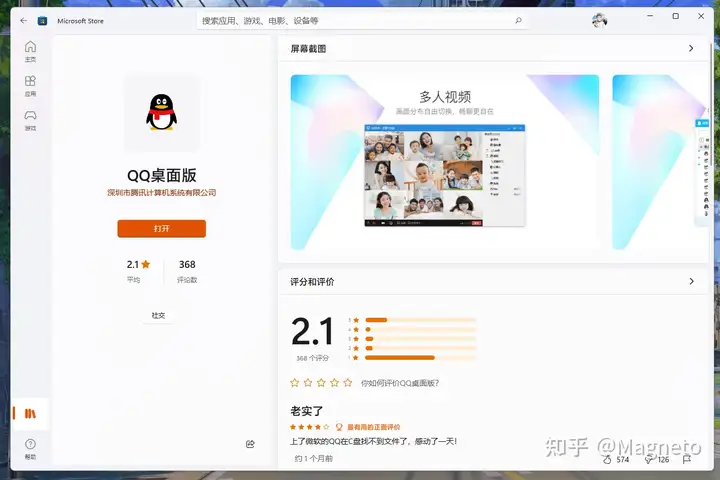
As a staple for people in China, the official PC QQ has plenty of issues: freezing after login, freezing when opening chat windows, pop-up ads, and more. Many have wished they could teach the developers a thing or two. But for systems after Windows 10, the Microsoft Store is something you shouldn't overlook. Many apps there offer better functionality than the versions downloaded from official websites — and they're still official releases. The Microsoft Store version of QQ effectively solves the login freeze, chat window freeze, and pop-up ad problems.
Paint 3D
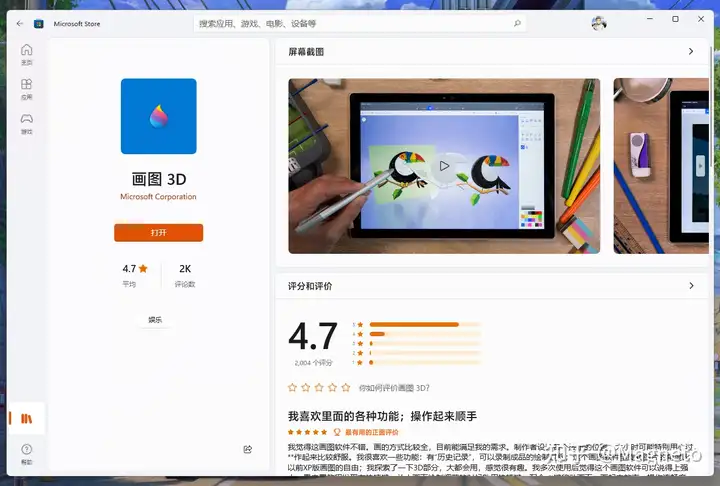
This was a built-in feature in Windows 10, but Windows 11 removed it and released it on the Microsoft Store instead. Its standout feature is "Magic Select," which is incredibly handy for cutting out images — it's extremely easy to use. You can also do 3D editing with it.
Snipaste
You can use it for screenshots, pinning images, and annotating images. The screenshot feature can automatically detect UI elements, and you can even fine-tune the mouse position with theW A S D keys. It also has a unique screenshot history playback feature. The pinning feature lets you keep a screenshot or other image on top as a floating window.
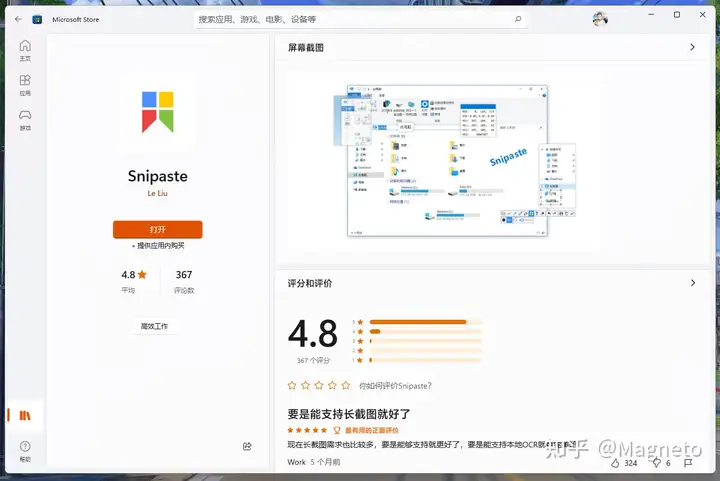
You can easily download it from the Microsoft Store. It has both a paid and a free version, but for most users, the free version is more than enough.
BiliBili
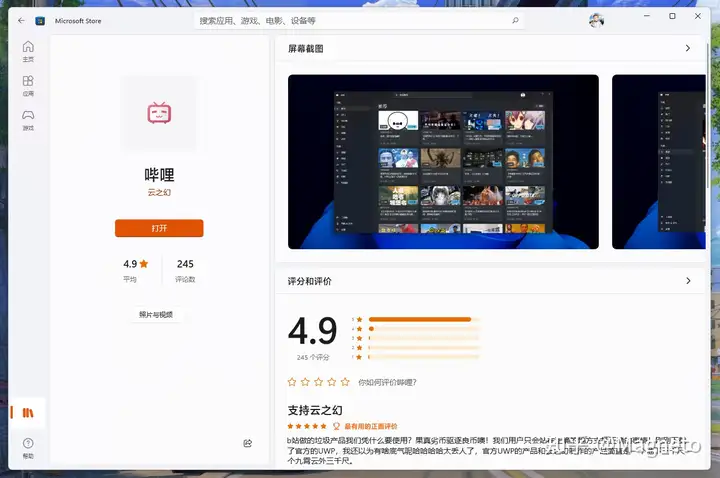
This is a third-party client for BiliBili, featuring a more beautiful UI than the original and a more user-friendly experience. You can search for and download it on the Microsoft Store, or use this link.
Wallpaper Engine
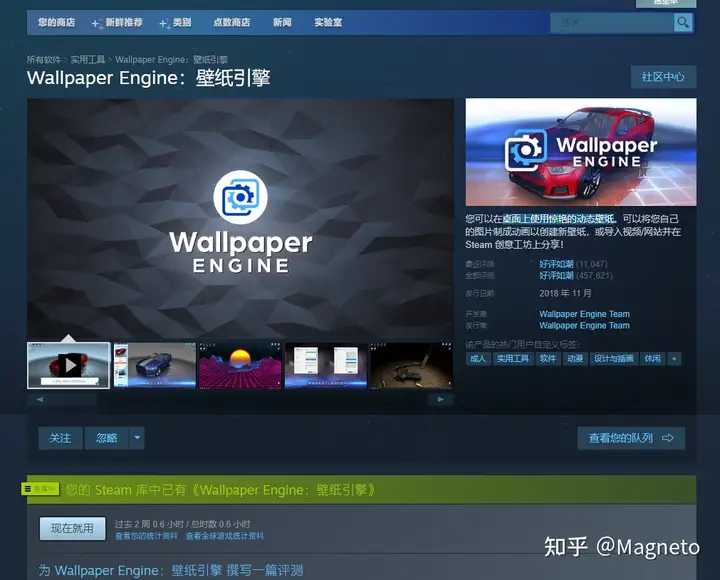
Bring stunning animated wallpapers to your desktop and beautify it! This software costs 19 yuan to purchase, and it's recommended to buy it on Steam. But hey, don't forget to take care of your eyes?
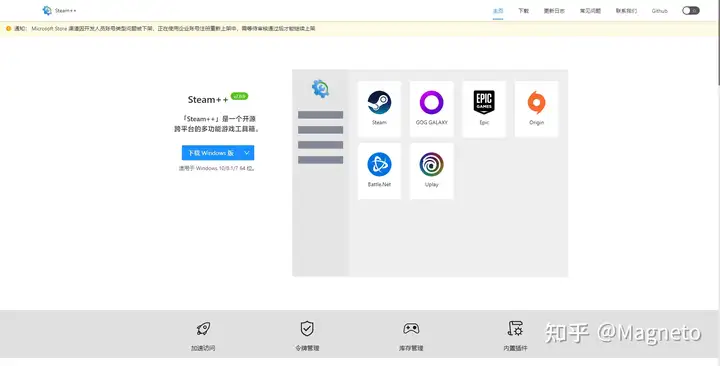
Steam++
An open-source, cross-platform multi-purpose game toolbox, but its biggest selling point is accelerating Steam.
Others
Here are some other tutorials for tweaking Windows 11.
These videos contain a lot of useful tips, but I wouldn't recommend disabling updates, nor using TranslucentTB on Windows 11, as it can cause some unpredictable bugs.
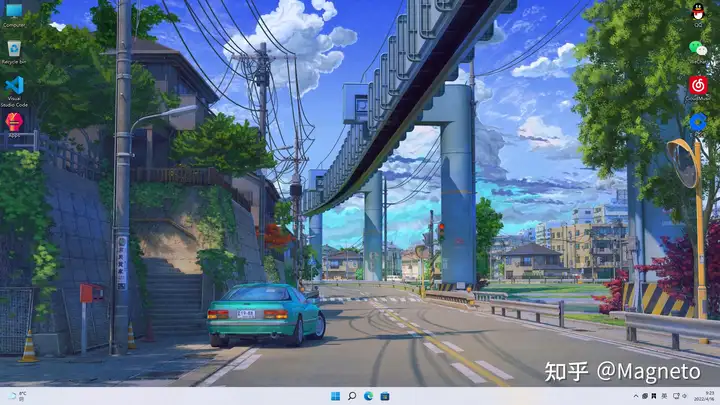
The Desktop, Perfected
After tweaking the desktop, here's what it looks like:
Conclusion
Let's circle back to where we started. Why did Microsoft go back on its word and release Windows 11? Because a new era had arrived — that's right! As human technology advances, as we explore deeper into the microscopic realm, and as control technology improves, today's hardware is iterating at an astonishing pace, and software is evolving right along with it. Whether it's software or hardware updates, they're all proof of human civilization's progress in the information age — the wisdom of over five thousand years of human history, built by the diligent hands of those who came before us, and the finest testament to the information era. And just like the software and hardware of today, the information age itself is the result of countless small updates and incremental progress, accumulating into a brand-new era. Windows 11, like the era we live in, still has plenty of issues, but I believe