Preface
Setting up a server on Linux is also quite simple, and it uses less memory, so it's recommended. Below, I'll use Ubuntu 18.04.1 for the demonstration.
You can play without a premium account.
Bedrock Edition uses the UDP protocol, default port 19132.
Java Edition uses the TCP protocol, default port 25565.
MineBBS: https://www.minebbs.com/
Mod百科: https://www.mcmod.cn/
MC导航网: https://www.mcnav.net/
Launchers (include all versions)
PCL2 Launcher: https://afdian.net/p/0164034c016c11ebafcb52540025c377
HMCL Launcher: https://hmcl.huangyuhui.net/
Official Launcher: https://www.minecraft.net/zh-hans/download/alternative
The most important part of a Minecraft server is the server core. Cores generally fall into these categories:
Vanilla Minecraft Core
Plugin-Only Core
Mod-Only Core
Hybrid Core (Plugins & Mods)
Plugins are extra components that help server admins with management tasks. They don't need to be installed on the client.
Compared to plugins, mods need to be added on both the server and the client to work. If you only add them on the server, clients won't be able to join. If you only add them on the client, you can join the server, but the mods won't have any effect (excluding client-side helper mods like minimaps, item tooltips, X-ray, etc. – here we're talking about gameplay-affecting mods).
Currently, the mainstream Java Edition server cores are: (There are also some I haven't looked into, so I won't list them.)
| Core Name | Description | Link |
|---|---|---|
| Vanilla Server | The official server, i.e., a pure/vanilla server. Cannot add plugins. Can add mods after installing Forge. Limited customization options. | https://mcversions.net |
| Bukkit, CraftBukkit | A relatively old plugin server. Does not support mods, but can use Bukkit plugins. It can use CraftBukkit plugins, but has poor compatibility with Spigot plugins. It can only use CraftBukkit plugins and some Spigot plugins. | https://getbukkit.org/download/craftbukkit |
| Spigot | Spigot optimizes Bukkit. Supports Bukkit plugins, but not mods. Good stability. | https://getbukkit.org/download/spigot |
| Paper | Paper optimizes Spigot. Supports CraftBukkit and Spigot plugins, but not mods. Comes with TPS optimization. Versions before 1.9.x had built-in anti-cheat, which was removed after 1.9.x. | https://papermc.io/ |
| MCPC+ | Can install mods and Bukkit plugins. Optimization is lackluster. Only supports Java 7, max version 1.7.10. | https://sourceforge.net/projects/cauldron-unofficial/files/oldreleases/version1/ |
| KCauldron (KC) | Can install mods and Bukkit plugins. Better optimized than MCPC+, Cauldron, and Thermos; uses less memory. However, max supported version is only 1.7.10. | https://sourceforge.net/projects/kcauldron/ |
| Thermos | An optimized version of KCauldron. More stable than the original Cauldron. Can add mods and Bukkit plugins. Max supported version 1.7.10. | https://cyberdynecc.github.io/Thermos/install |
| Contigo | The successor to Thermos, with many optimizations: server lag optimization, multi-threaded processing, lower latency, better world protection. (Items called by Forge don't pass through Bukkit plugins!) | https://github.com/djoveryde/Contigo |
| Uranium | An optimized version of KC. Multi-threaded processing for higher efficiency. Supports Bukkit plugins and Forge mods. Max supported version 1.7.10. | https://www.uraniummc.cc/ |
| CatServer | A legendary core developed by a Chinese developer. Supports Forge mods and Bukkit/Spigot plugins, with multi-threading optimizations. Version 1.12.2. | https://catmc.org/ |
| Mohist | Can use both mods and plugins. Supports some Paper plugins. Doesn't require a powerful server to run, and comes with multi-threading. Many plugins aren't supported, and some mods aren't supported either. | https://mohistmc.com/ |
| Arclight | Can use both mods and plugins. The server's network environment isn't great, so downloading necessary libraries can be a pain. | https://github.com/IzzelAliz/Arclight/releases |
| Magma | A 1.12.2 server based on Forge and CraftBukkit. Uses Forge mods and Bukkit plugins. Future support for 1.14 & 1.15 planned. | https://magmafoundation.org/ |
| Sponge Forge | Has its own plugin system. Can use mods and Sponge plugins together on versions 1.8 and above. | https://www.spongepowered.org/ |
| Sponge Vanilla | Supports Sponge plugins, not Forge mods. Low memory usage and low system requirements. | https://www.spongepowered.org/ |
| Glowstone | A fully open-source server. Supports Bukkit plugins. Version 1.12.2. | https://www.glowstone.net/ |
Java Download (Mirror Sites):
For users in China, it's recommended to use mirror sites (I suggest 编程宝库, as I find it quite comprehensive).
injdk: https://www.injdk.cn/
Tsinghua University Mirror: https://mirrors.tuna.tsinghua.edu.cn/Adoptium
Huawei Mirror: https://repo.huaweicloud.com/java/jdk/
MC versions and their corresponding Java versions:
1.7.X —— JDK 8
1.8.X —— JDK 8/11
1.12.X —— JDK 8/11
1.16.X —— JDK 16/11
1.17.X —— JDK 16 or higher
1.18.X —— JDK 17
Ubuntu can install JDK directly from the apt repository.
Below, I'll use CatServer for the server setup demonstration:
CatServer was the first core I used to set up a server, and I think it's pretty good. Although CatServer has a bit of a dark history, it doesn't affect my usage at all. As we all know, the two most prosperous mod versions are 1.7.10 and 1.12.2. The newer version has richer content, so I directly chose CatServer (Note: Every version and every core has its own reason for existing. Don't badmouth other server cores to praise your own choice).
Simple Tutorial:
Install JDK 8 with a command, download CatServer with a command, start with a command.
Detailed Tutorial:
- Prepare the server:
You need to prepare the server yourself (Linux systems like Ubuntu, Debian, CentOS all work). I recommend using a server because it runs 24/7 and is stable. Use the officially recommended Ubuntu for the server. I'm using Ubuntu 18.04.1 here.
- Open the port:
Choose the protocol based on your server type (e.g., Java Edition uses TCP). The default port for Java Edition is 25565. Some Ubuntu systems have the firewall enabled. You can either turn it off completely or just open the specific port (I'll explain how below).
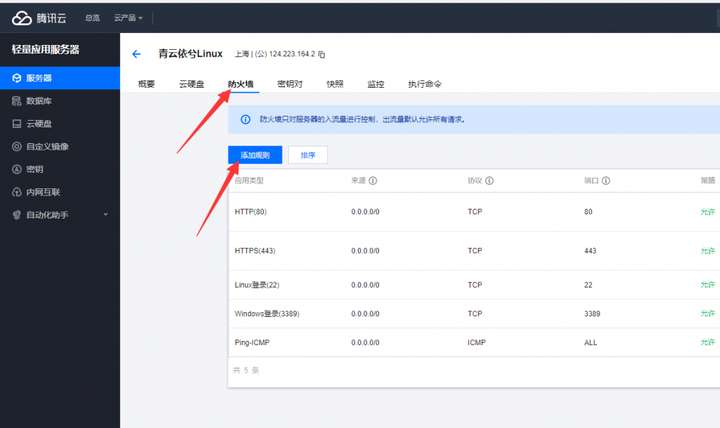
The default login account is ubuntu.
- Check the current firewall status.
inactivemeans it's off,activemeans it's on. [For CentOS:firewall-cmd --state]
sudo ufw status
- Disable the firewall (skip if it's not enabled). [For CentOS:
systemctl stop firewalld]
sudo ufw disable
- Check which JDK versions are available in the apt repository. [For CentOS:
yum search java|grep jdk]
apt-cache search java|grep jdk
Install the Java environment. You'll need to type
yto confirm. [For CentOS:yum install java-1.8.0-openjdk]Shellsudo apt-get install openjdk-8-jdkPlease check the Repost Notes section at the end for Java version recommendations.Installing OpenJDK 8 is not recommended here.
Verify that JDK was installed successfully.
Shelljava -versionCreate an empty directory (
catis just the directory name; you can name it anything).Shellmkdir /home/ubuntu/catEnter the directory.
Shellcd /home/ubuntu/catDownload the server package. Go to the CatServer official website to get the download link. [For CentOS:
yum -y install wget]Shellwget https://luohuayu.coding.net/p/CatServerRes/d/CatServerRes/git/raw/master/serverjar/CatServer-a8b73e9-universal.jarRun it once to download the necessary files.
Shelljava -jar CatServer-a8b73e9-universal.jar- Skip this step for CatServer
. For the official server package, the first run will generate an
eula.txtfile.
Type vim eula.txt, then press the i key to enter edit mode, and change false to true in eula=false.
Then press the esc key.
Then type :wq and press Enter (don't forget the colon).
Type
stopand press Enter to stop the server.Disable online-mode verification. In the
server.propertiesfile, changetruetofalseinonline-mode=true.
I have some basic Linux knowledge, so I prefer modifying files directly via commands (it's fast and efficient). Of course, you can also choose to install a panel like BaoTa for visual file management, which is suitable for beginners.
First, let's cover modifying directly via commands. You can use the
tabkey for auto-completion.Shellvim /home/ubuntu/cat/server.propertiesPress the
iorinskey to enter edit mode. Move the cursor toonline-mode=trueand changetruetofalse.
Then press the esc key.
Then type :wq and press Enter (don't forget the colon).

Next, create a screen session (
catis the window name; you can name it anything). [For CentOS:yum install screen]Shellscreen -S catStart the server. If you see the following information, the server started successfully.
Shelljava -jar CatServer-a8b73e9-universal.jar
Then you can execute admin commands, like op {player_id} to give a player admin privileges (the player needs to be online).
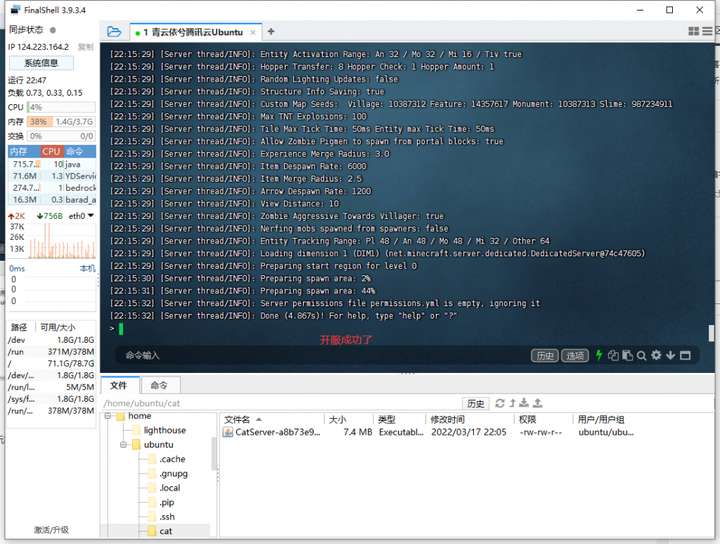
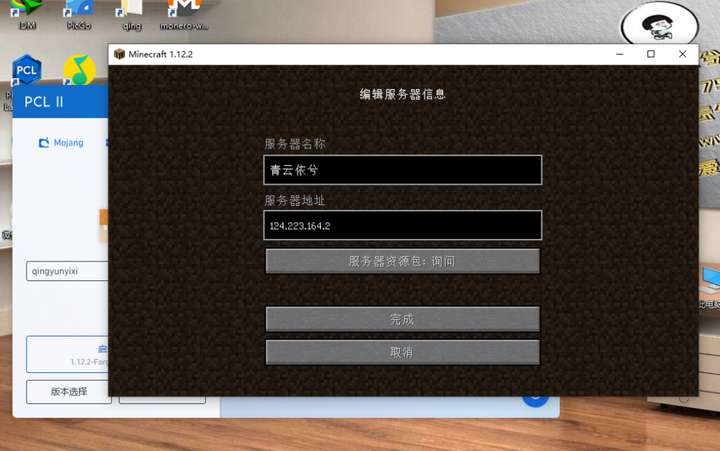
- Next, connect to the world to test it. Enter your public IP; the port is the default 25565 (you can leave the port blank unless you changed it to something else).
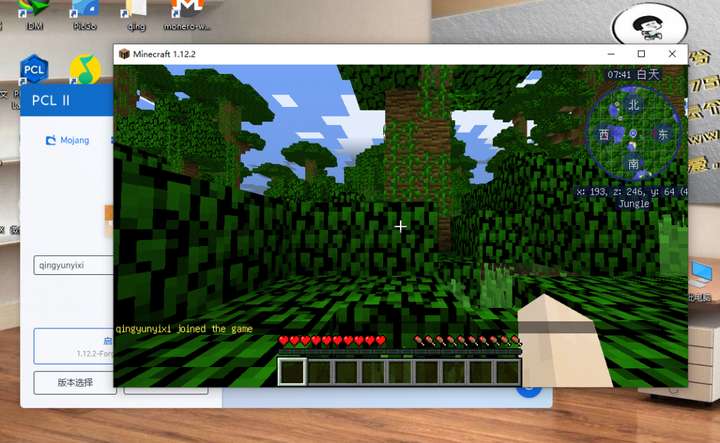
Press
Ctrl+A+Dto detach from the screen window. Then check if screen is working properly.Shellscreen -ls
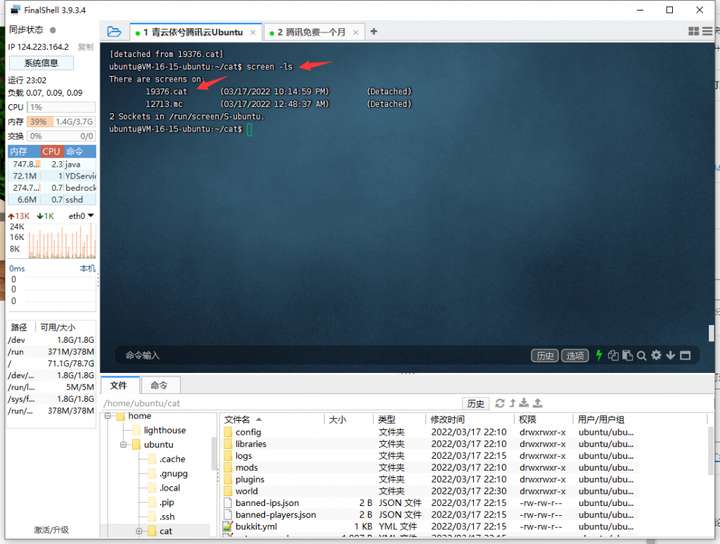
OK, no problem. Now you can close your SSH connection software.
Configuration:
Server.properties configuration file. Official documentation: https://minecraft.fandom.com/wiki/Server.properties
CatServer folder structure
More Screen Settings
If you want to resume the server console to execute Minecraft commands in the background, just type:
screen -r cat
If you want to shut down the server, you can execute the following command to kill the screen session named cat from outside the screen:
screen -S cat -X quit
More Ubuntu Firewall Settings
Enable the firewall. You'll need to type
yto confirm.Shellsudo ufw enableAllow a port through the firewall.
Shellsudo ufw allow/deny 19132
// Allow / Deny access to port 19132. You can append /tcp or /udp to the port to specify the protocol.
After allowing the port, reload the firewall for the changes to take effect.
Shellsudo ufw reload
Installing 1Panel
Official website: https://1panel.cn/
Ubuntu installation command:
curl -sSL https://resource.fit2cloud.com/1panel/package/quick_start.sh -o quick_start.sh && sudo bash quick_start.sh
Repost Notes
Due to Minecraft updates, many people will choose to set up servers on the latest version. Therefore, it's recommended to install OpenJDK 17.
sudo apt-get install openjdk-17-jdk
If your server has less than 2 cores and 2GB of RAM, it's not recommended to set up a server, as it's likely to run out of memory and fail to start.